Logging into Agile Ticketing Solutions App and Web Portal
Using your user name and password to access Agile Ticketing Solutions

Table of Contents
To begin working in Agile Ticketing Solutions (ATS) use your username and password to access the system. Below you will find the instructions for logging into either the box office software you can find Here or the browser-based web portal.
Web Portal Login
To log in to the Web Portal, locate and launch your preferred web browser, be that Edge, Chrome, or Safari. Navigate to portal.agiletix.com where you will provide your Username, Password, and Domain to complete the process. If you have forgotten your password click the blue Forgot Your Password link and provide the email address tied to this account.
Only use Stay Logged in for 2 weeks on computers you do not share but this will keep you from being kicked out of the web portal for inactivity.

Logging into Admin and Sales
First locate and open the ATS App on your PC. This can be done by double clicking on the app icon.

Or launching it from your platform search bar.
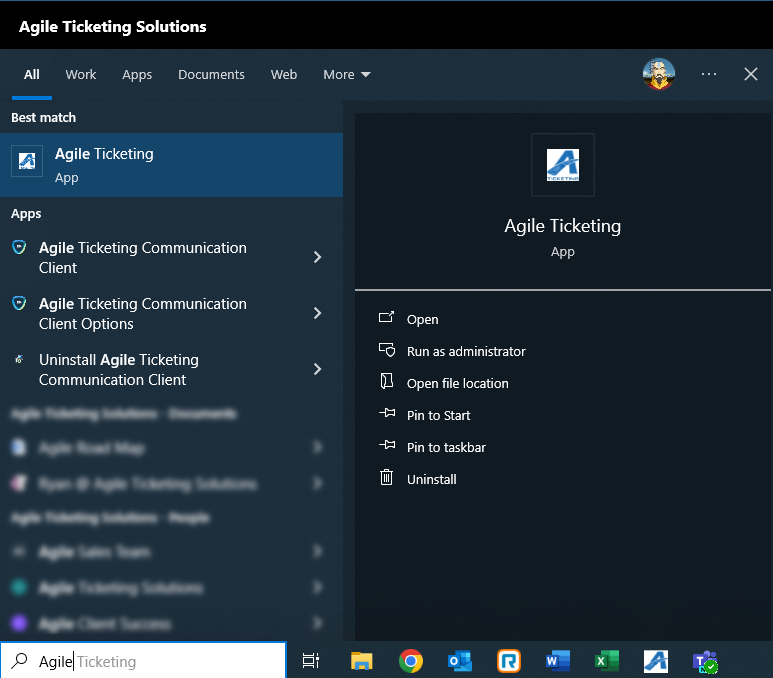
Both methods will launch the app so you can log in. Provide your username, password, domain, and Select Sales or Admin to complete the process. If you have forgotten your password click the blue Forgot Your Password link and provide the email address tied to this account.

While logging into either of the platforms above you can access your training domain. Your training domain copies over on Monday and is an exact copy of your live environment except that it is one week behind. If you add a new user to your live environment on Tuesday they will not appear automatically in training until the following Monday.
Customer accounts in training have also been scrubbed to prevent accidentally contacted them by changing all email and physical addresses to the home office of Agile.
While logging in put the word train and a back slash before your domain with no spaces to sign in to that domain as seen below.

Single Sign On - SSO
Single Sign on allows you to pass your login credentials to Agile and have that process happen in place of a user name and password. The user account must be created first in Agile and must use the same email address as the credentials you want to use for SSO. For now our pass through methods are via SAML and Microsoft Entra.
SSO must be enabled on your domain before that option will appear on your login page or pop up. To force the use of SSO check the SSO Sign-In Required box on a users account.

To use SSO once set up you must enter your Domain and click the SSO button.

Once the Sign in screen opens you can either sign in with the same credentials you used for your computer or use the other sign in options such as PIN, finger print, or facial scan.


Clicking Sign-in Options will get you the none password options.


Click Yes on the stay logged in screen to reduce the frequency you will be asked for your SSO and check the Don't show this again box to disable this message in the future.
